Intro - What you can do - Computer vision syndrome and how to prevent it - Types of reminders - More forcible reminders - Can I use other screen savers? - Options - What to do next
Intro
Do you ever get dry eyes or tired eyes when you are working on the computer? This is probably computer vision syndrome, and it is preventable. You just need to look away from the screen for a few seconds every few minutes as you work.
Activity Timer can help you by showing gentle reminders to look away - or more forcible ones if you prefer. This helps with Computer Vision Syndrome - the tiredness you get in the eyes if you spend long periods of time looking at a computer monitor.
Are you ready to get the program now? Go to What to do next. To find out more about this feature, read on.
What you can do
You can choose between many types of reminder - play a tune, or show a photo or other image or a short movie or animation - it's up to you. The preset is a gently flashing screen border showing a progress bar for the duration of the reminder, The program icon also flashes.
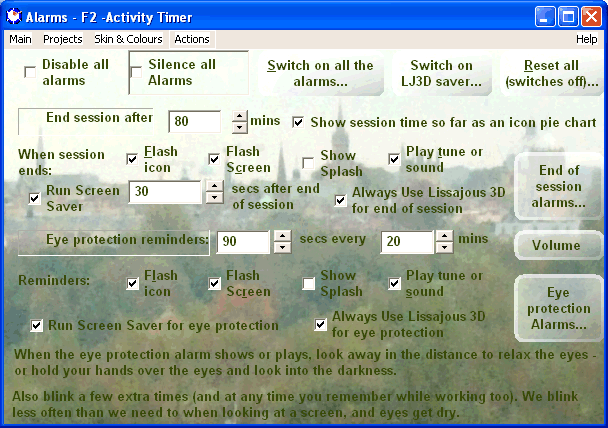
The eye protection alarm pops up for a few seconds from time to time. You can choose how long and for how often - the preset is for thirty seconds every twenty minutes. You can use any of the alarms together with the other ones.
Computer vision syndrome and how to prevent it
It helps avert computer vision syndrome - the short term tiredness you get in the eyes if you spend long periods of time looking at a computer monitor.
One's eyes may also find it harder to focus on a computer screen than on a piece of paper - they may work harder to keep it in focus, so you feel low levels of eye strain and tiredness.
We also tend to blink less than usual when we look at a computer screen, which is why the eyes get dry. So it helps if one looks away - and perhaps deliberately blink slowly a few times as well.
An effective way to wet the eyes is to slowly close the eyelids a few times, just let them drop as if about to fall asleep in a short nap.
Also, there are various eye exercises you can do which seem to help and at any rate are something to do, to ensure you look away from the screen. E.g. to look into the distance. Or focus alternately on something near such as a pencil, and something in the distance. Or cover the eyes with your hands and look into the darkness - or to look in the directions of an imaginary clock hours, another one is to look upwards.
If you tend to work for very long periods at a stretch never leaving your desk, it may help to take a short break too, e.g. for ten or fifteen minutes every hour and a half or some such. Anything that takes you away from the monitor briefly. I practice the recorder, do a few stretching movements or go for a very short walk or cycle run, and when I come back my eyes are rested and ready for another session at the monitor.
It is a minor nuisance which means that you work less effectively and get tired.
Some scare mongering type web sites present it as a big problem (often with something to sell to prevent it), but the more expert ones seem mainly to say that it is just a minor nuisance of a thing. Of course if you have any doubts or want to know more or feel you may have something more than the usual dry eyes see an eye doctor!
For more on this, see the wikipedia article, Computer Vision Syndrome, also the Mayo Clinic page on dry eyes and the All About Vision Computer Vision Syndrome page and their Q & A.
Types of reminders
You can set the screen border to flash, or the activity timer icon to flash, or play a short tune every time. You can also show any image as a splash, the Activity Timer splash screen is the preset here:
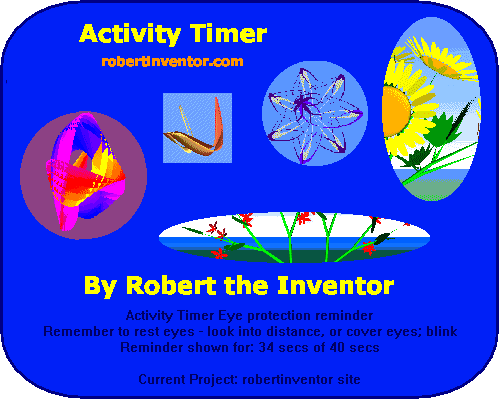
Replace this with any image or photo (a few example photos included with the program) or you can show any web page as the splash too. The web page option lets you show anything that you can place in a web page as the reminder, including movies, animations and so on.
More forcible reminders - the Lissajous 3D screen saver
If one is very focused on the work, sometimes one may feel the need to be forcibly interrupted, and actually get the screen blanked out so that you have to stop Perhaps you find it too easy to continue to work through the usual visual and musical alarms and animations.
If this is you , try the option to start up the Lissajous 3D screen saver (it doesn't have to be selected as your desktop screen saver).
This starts up straight away, and interrupts you right in the middle of your typing. It blanks out the screen with a screen saver - so you have no choice, you have to stop whatever you are doing right away - just momentarily as you know it is only for half a minute or so. The screen saver runs for a short while. When it stops you resume work again.
Here is Lissajous 3D as it looks when it interrupts my typing:
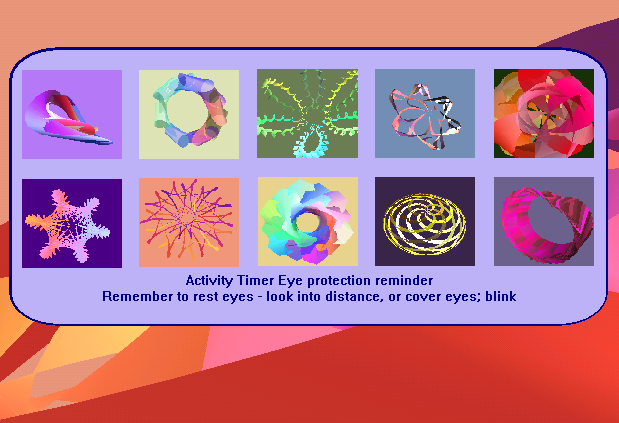
There the pattern in the background is swirling. The reminder appears for a few seconds then you just see the swirling Lissajous pattern.
If you continue to type then the screen saver message there changes to tell you what key to press to dismiss it if you want.
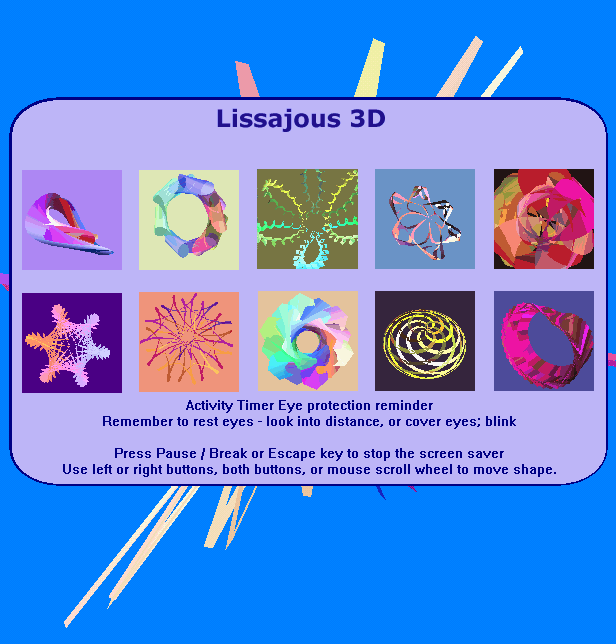
The message there shows briefly, then disappears leaving just the animation. You see the swirling patterns, and that's your moment to blink and look away in the distance or do whatever eye exercises you do. Then after the time you set for the reminder, the screen saver goes away by itself, and you can resume your work where you left off.
If you really need to, you can dismiss it by pressing the escape key. So you know you can dismiss it, and you know it is only for a few seconds, so may find that works quite well, you just let it run.
You can use any other screen saver in this way - but Lissajous 3D is especially designed to work well when used in this way with Activity Timer. So, for instance it shows the reminder messages shown above when started from Activity Timer (other screen savers wouldn't show them).
Can I use other screen savers with Activity Timer?
There's an option to use your currently installed screen saver whatever it is. I can easily add an option to configure which screen saver you want to use for eye protection independently from your normal screen saver. Let me know if this will be helpful and I'll add it in.
If you want to try other screen savers, then you need onee that, like Lissajous 3D, can be configured to ignore mouse movement and key presses apart from some special key(s) e.g. escape. Otherwise if it shows up when you are typing, the next key you press will dismiss it before it has a chance to get going for more than a fraction of a second. As an alternative, it could work to have a minimum time period it will show for, say for five seconds or whatever, long enough for you to notice and stop typing.
That is by necessity. The easiest way to get this new option in Activity Timer up and running is to adapt my own screen saver to work with the program.
So if you are a programmer for a screen saver and would like it to be able to work with Activity Timer in the same way, just let me know, and I will be delighted to do what I can to get the programs to work together.
Options in Activity Timer for this feature
You will probably want Activity Timer to run all the time and to start with windows. So, after the install, go to and switch on .
You may also want to switch off the alarms when particular programs are running, for instance DVD players etc.
You can disable them temporarily with a right click on the program icon, or you can configure Activity Timer to switch them off automatically whenever you use the program using
What to do next
Freeware / Shareware status: The alarms that come with the program - musical alarms, flashing icon, splah, and flashing border - are basically free with a short splash screen that shows when Activity Timer first starts up. Some of the options such as to show any web page content as the reminder, are shareware.
The Lissajous 3D screen saver is shareware.
Activity Timer can be used in many ways. For this feature you probably want it to start with windows, minimized to the tray, and may want the alarms to be disabled when for instance you play a movie on your computer. For more on this see Options in Activity Timer for this feature above (if you haven't read it yet).
To read more about Activity Timer, go on to Session Alarms & progress indicatorsTo get the program, download and install Activity Timer.
|